![stratagon-logo-white-1.png]](https://learn.stratagon.com/hs-fs/hubfs/stratagon-logo-white-1.png?height=22&name=stratagon-logo-white-1.png)
Purpose
To maintain a consistent and professional Stratagon brand presence, all employees are required to use an approved Stratagon virtual background during all Microsoft Teams calls (internal and external).
These backgrounds ensure our meetings reflect the same high-quality visual identity as our work.
Required Use Policy
Effective immediately:
All Stratagon team members must select and use one of the approved Stratagon backgrounds for every Teams call.
This applies to:
- Internal meetings
- Client calls
- Partner calls
- Interviews
- Any video-enabled Teams session
Personal, default, or unbranded backgrounds should not be used.
Step-by-Step:
Uploading a Background in Microsoft Teams
Download the Backgrounds
Follow the Egnyte link and download the backgrounds to you computer to use for upload:
Note: these will appear backwards but we will ensure the video settings are mirrored.
Open Microsoft Teams
Launch the Teams desktop app (preferred) or join a meeting through Teams.
Create a Meeting and Join
Create a Teams meeting on your calendar (no need to invite anyone)
Click Join
Before entering, you’ll see camera and audio settings.
Select Mirror
Select the dropdown arrow next to the camera icon.
Click More video settings
Ensure mirror my video is selected.
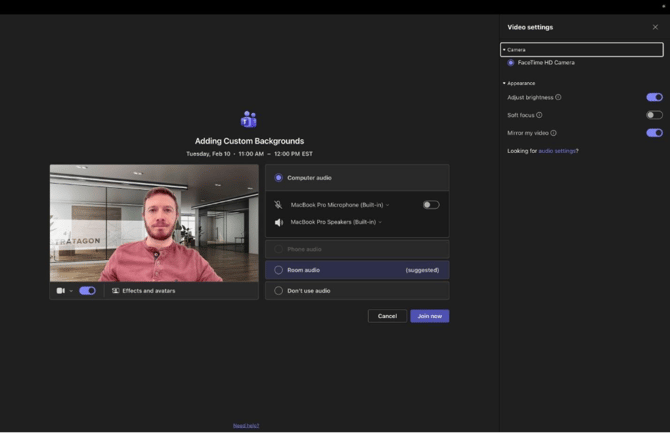 This will ensure none of the backgrounds are backwards.
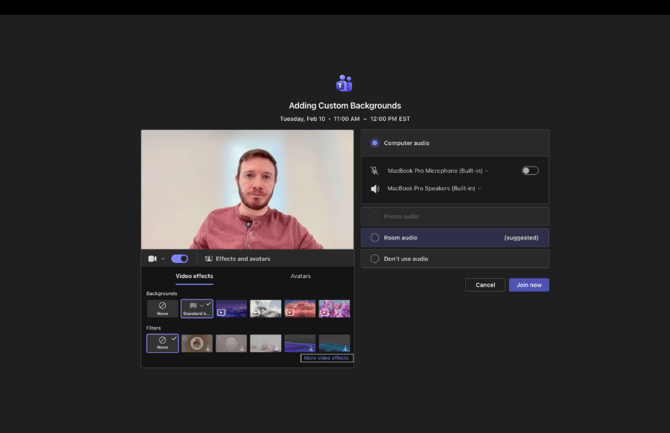
Open Background Settings
On the pre-join screen:
Click Effects and avatars (or Background effects)
Select More video effects
Add the new backgrounds
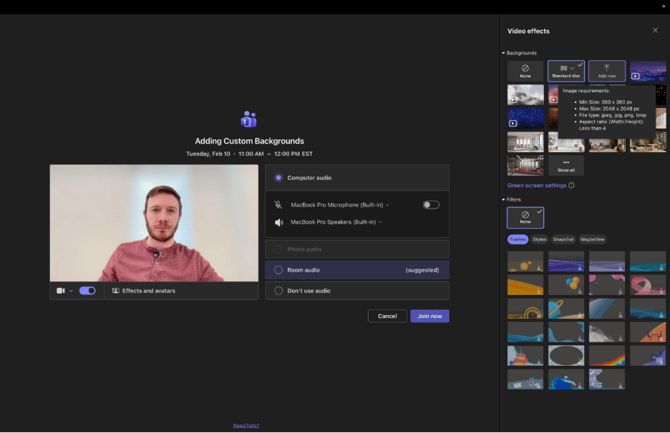
In the Background panel:
Click Add new
This will open your file browser.
Upload all the backgrounds
Once uploaded, the background will appear in your Teams background library (you may need to click “view more” to see the newly uploaded backgrounds.
Select Your Background
Click on one of the Stratagon backgrounds to apply it.
You can preview before confirming.
Expectation Going Forward
To keep our brand consistent:
- Please upload backgrounds immediately
- Use only approved Stratagon options
- Ensure your video setup is meeting-ready before joining calls
- If you have trouble uploading or don’t see the options, contact Matt Gorlaski for support.